Using the Pitwall Panel
The Pitwall Panel
Pitwall is a control panel available inside RViz. It lets you adjust the driving mode, opponent spawning, virtual LiDAR on/off, virtual perception mode, opponent speed, and more — all in real time from within RViz.
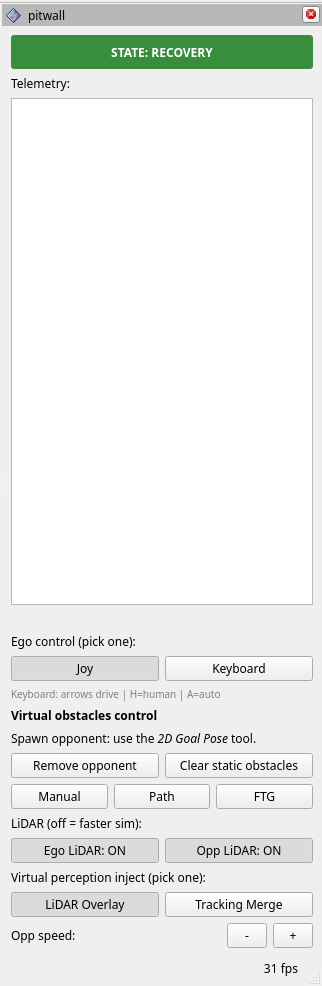
Pitwall Features
STATE (Status Banner)
The colored banner at the very top of the panel — like STATE: GB_TRACK — shows the Ego vehicle’s current driving state (the state machine). The state changes automatically with the driving situation, and each state has its own banner color. This one banner tells you whether the car is “just driving” or “overtaking an opponent” right now.
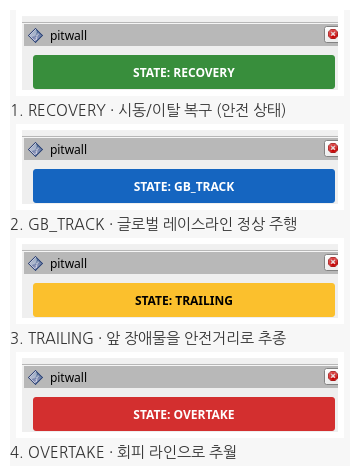 The four STATE states (RECOVERY · GB_TRACK · TRAILING · OVERTAKE)
Example) Placing an obstacle on the raceline makes the Ego approach (GB_TRACK) → follow behind (TRAILING) → overtake the obstacle (OVERTAKE) → and cycle back to GB_TRACK.
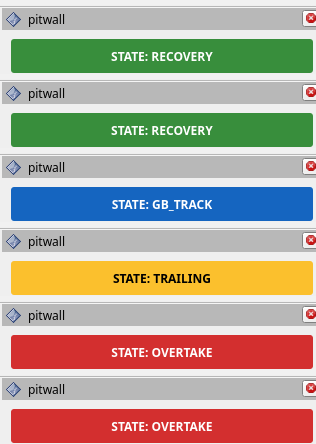 STATE banner cycle (GB_TRACK→TRAILING→OVERTAKE)
Example) The Ego avoiding an obstacle while driving in RViz (the circle in the middle of the map also changes color with the state machine):
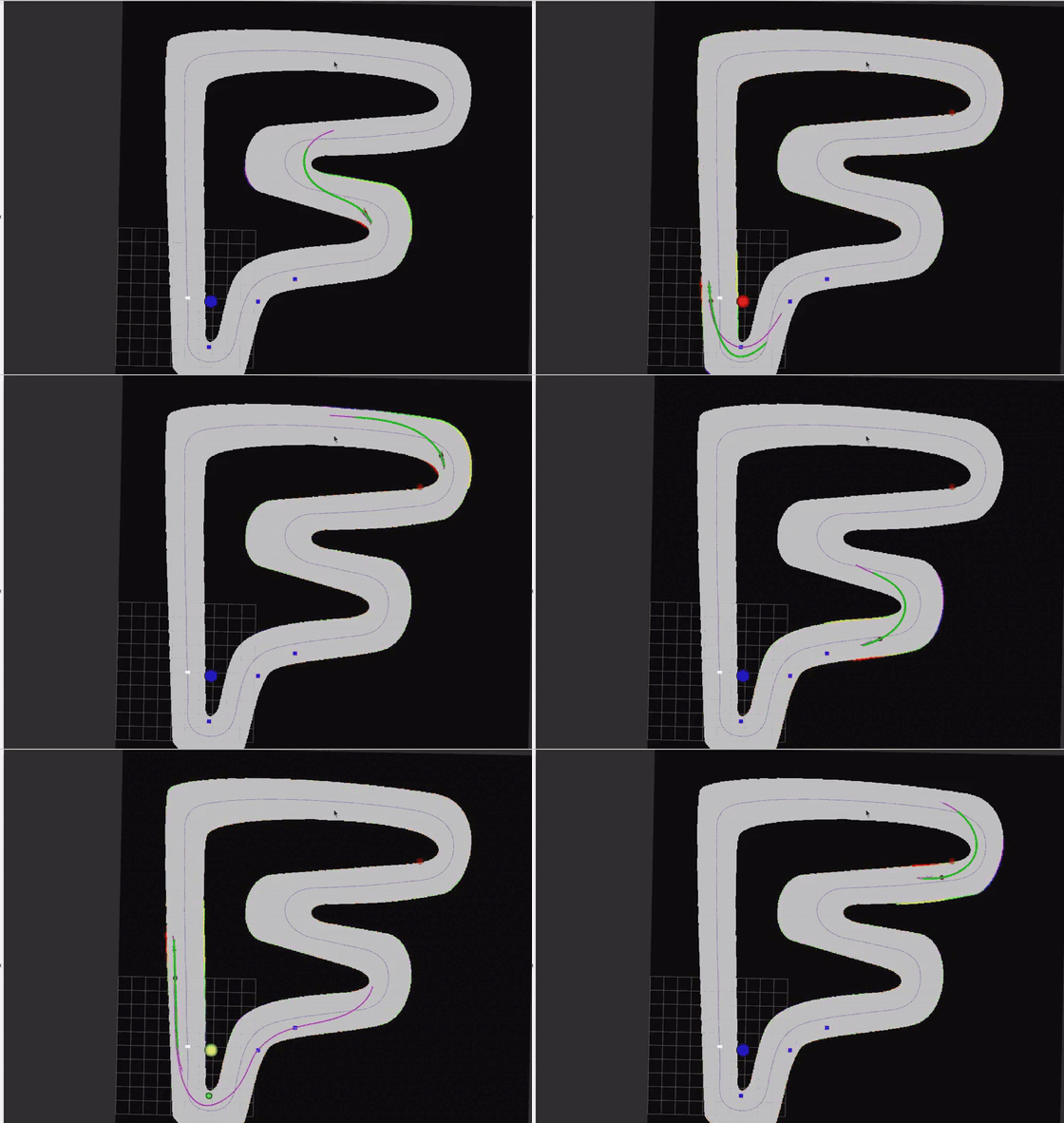 Live overtaking run (RViz)
Ego Control Method (Joy / Keyboard)
Selects which device controls the Ego vehicle.
- Joy: a joystick (joypad) connected to the computer (
LB= manual,RB= autonomous) - Keyboard: the computer keyboard (arrow keys to drive,
a= autonomous /h= manual)
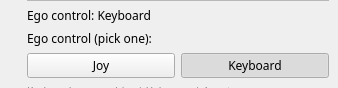 Selecting the Ego control method
Spawning and Clearing Static Obstacles
Static obstacles are created by clicking the track with the Publish Point tool at the top of RViz. Click the tool, then click anywhere on the track — a blue obstacle appears there, and multiple clicks place multiple obstacles. These obstacles are perceived by the Ego like real ones and become avoidance targets. Clear them all at once with Pitwall’s Clear static obstacles button.

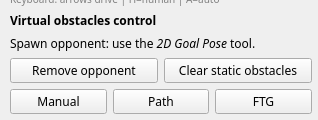
Due to a bug, static obstacles sometimes fail to clear. When that happens, press Reset at the bottom-left of RViz, then uncheck and re-check UTILS in the left Displays panel — everything returns to normal.
Spawning and Controlling the Opponent
This part creates and controls the virtual opponent. The opponent is not an object in the physics engine — it is an independent program (opponent_vehicle) that moves with a simplified kinematic bicycle model.
- Spawning an opponent: click the 2D Goal Pose tool at the top of RViz, then click-and-drag at the desired position — an opponent appears with that pose. (Same usage as
2D Pose Estimatefor the Ego; only the tool differs.)

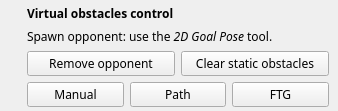
The opponent has three driving modes: Manual, Path, and FTG.
- Manual: drive the opponent directly, just like the Ego vehicle. (Coming later)
- Path (path following): drives the same path as the Ego vehicle (Pure Pursuit based).
- FTG (Follow-The-Gap): drives in Gap Follow mode.
- Opponent speed (Opp speed +/-): adjusts the virtual opponent’s speed (cap) with the
+/-buttons. Each press changes it by ±0.5 m/s, applied in every driving mode.
 Opponent speed control (Opp speed +/-)
Example of an opponent driving with Path mode
Remove a spawned opponent with Pitwall’s Remove opponent button.
Virtual LiDAR (Ego / Opp)
Decides whether the virtual LiDAR is used. Turn it off to run the sim lighter.
 Virtual LiDAR on/off (Ego LiDAR / Opp LiDAR)
Virtual Perception Injection (LiDAR Overlay / Tracking Merge)
Perception proceeds roughly as perception/tracking → path planning (planner). This feature decides at which stage the artificially created opponents/obstacles enter our car’s perception pipeline.
- LiDAR Overlay (front injection): fabricates fake LiDAR returns and overlays them onto
/scan(the LiDAR data). Use it to test from the actual perception→tracking stage. - Tracking Merge (rear injection): skips detection/tracking and feeds perfectly tracked obstacles straight into the planner. Use it to test only path planning, assuming perception is trusted.
 Virtual perception injection (LiDAR Overlay / Tracking Merge)
RViz Controls at a Glance
| Control | Action | Topic (type) |
|---|---|---|
| Spawn/move opponent | Not a button — click the map with RViz 2D Goal Pose | /goal_pose (PoseStamped) → spawns/moves opponent_vehicle |
| Remove opponent | Removes the opponent | /sim/remove_opponent (Empty) |
| Place static obstacle | Not a button — click the map with RViz Publish Point | /clicked_point (PointStamped) → static_obstacle_manager |
| Clear static obstacles | Deletes all static obstacles | /sim/clear_obstacles (Empty) |
| Manual / Path / FTG | Opponent driving mode | /sim/opp_mode (String). manual=/opp_cmd_vel teleop, FTG forces the opponent LiDAR ON |
| Ego / Opp LiDAR ON·OFF | LiDAR toggle (off = faster sim) | /sim/ego_lidar_enable, /sim/opp_lidar_enable (Bool) |
| LiDAR Overlay / Tracking Merge | Pick the virtual perception injection stage | /vp/inject_mode (String: “overlay”/”merge”) |
| Opp speed − / + | Opponent speed ±0.5 m/s delta | /sim/opp_speed_delta (Float32) |
| Ego control Joy / Keyboard | Pick the Ego input source | /ego/use_keyboard (Bool: false=Joy, true=Keyboard) |
Wrap-up
This post walked through the Pitwall panel’s features — reading the driving state from the STATE banner, picking the Ego control method (Joy/Keyboard), spawning and clearing static obstacles and opponents, and controlling the virtual LiDAR and the virtual perception injection stage, all in real time inside RViz. For how to start the Sim in the first place, see Basic Simulator Usage.