Fixing Device IPs by MAC Address on the Router
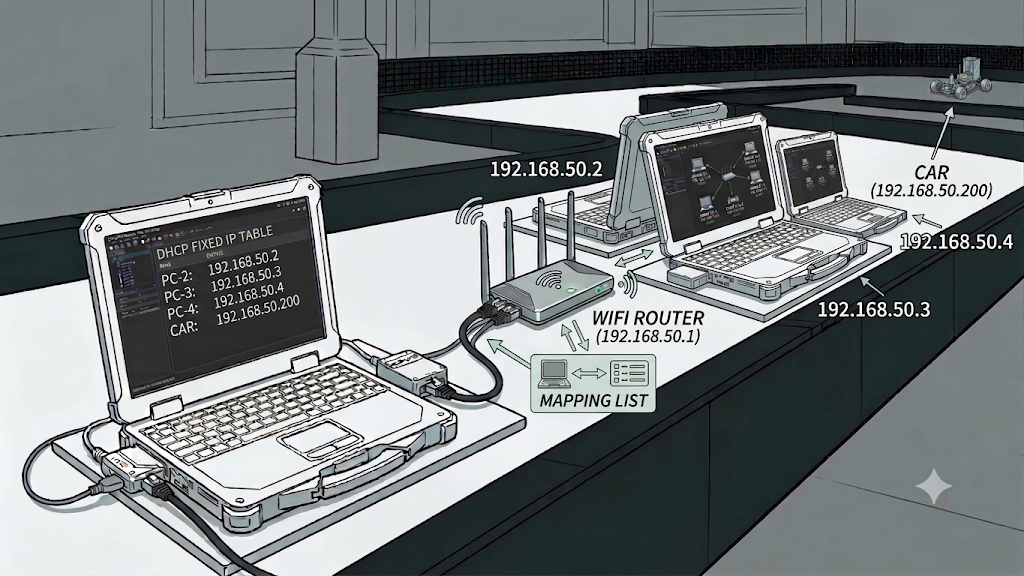
Why Fix the IP
Routers assign IPs to devices automatically via DHCP (Dynamic Host Configuration Protocol) by default. Under this scheme, a device’s IP can change every time it reconnects or the router reboots.
Especially in an environment where many people frequently join the same WiFi, the same device may receive a different IP than before depending on connection order and timing. When multiple devices communicate based on fixed IPs — as in an autonomous racing stack (the car, personal laptops, and so on) — every IP change means reconfiguring the setup all over again.
Binding a specific IP to each device’s MAC address makes that device always receive the same IP no matter when or who connects, eliminating the problem.
How It Works
A MAC address is a unique identifier assigned to every network card. Using the router’s DHCP reservation (static assignment) feature, you can register a rule saying “always give this IP to the device with this MAC address.”
With this approach, nothing needs to be configured on the device side. The device receives its IP automatically from the router as usual — but since the router looks at the MAC address and hands out the same IP every time, the IP is effectively fixed.
Setup Steps
Menu names vary by router manufacturer, but the flow is generally as follows.
- Open the router’s admin page. Enter the gateway IP in the address bar — usually
192.168.0.1unless the subnet was changed. If you use a different subnet, it is the.1address of that range (e.g.192.168.50.1for the 50 range). - Find the DHCP server section under the LAN settings. This is where features like DHCP reservation, static IP assignment, or address reservation live.
- The list of currently connected devices shows each device’s MAC address. Identify the MAC address of the device you want to fix, and register it together with the IP address to assign.
- Save the settings and reconnect the device — it now joins with the assigned IP.
A device’s MAC address can be checked on Ubuntu with
ip linkorifconfig. Cross-checking it against the router’s connected-device list identifies which device is which.
 Browser address bar for reaching the router admin page (192.168.50.1)
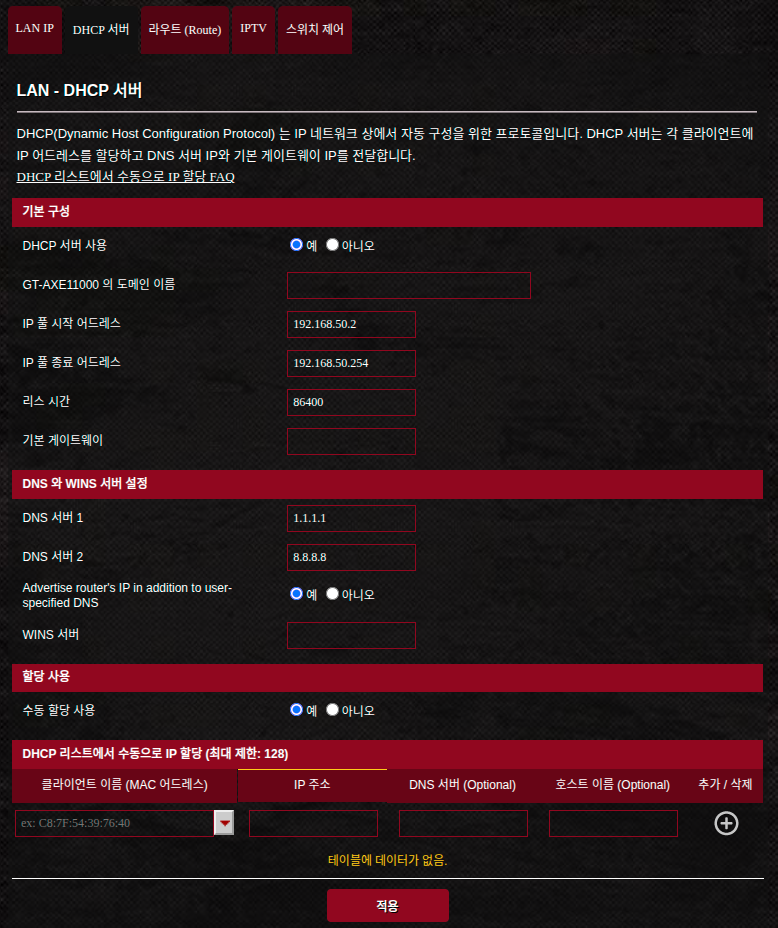 Manually assigning IPs per MAC address on the DHCP server settings page
Wrap-up
This post covered fixing a device’s IP by binding it to its MAC address with the router’s DHCP reservation feature. In an autonomous racing stack environment where multiple devices communicate over fixed IPs, this setting alone eliminates the problem of IPs changing on every reconnect or reboot. If communication latency is your problem, also see Reducing WiFi Communication Latency.