Racing-Stack Remote Run Guide: Network, SSH, and Docker
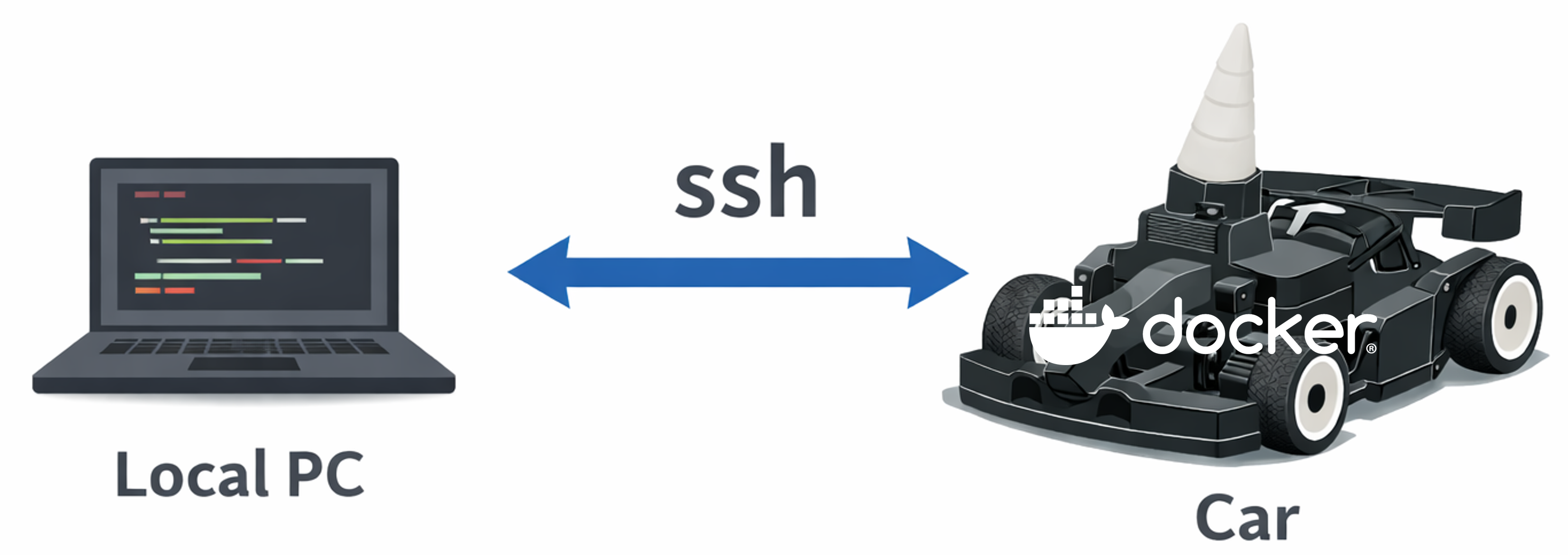
This guide summarizes the remote execution setup for Racing-Stack. Follow the sequence network setup → SSH access → Docker access.
1. Network communication
You must confirm connectivity between the local PC and the vehicle first.
1-1. Check the network
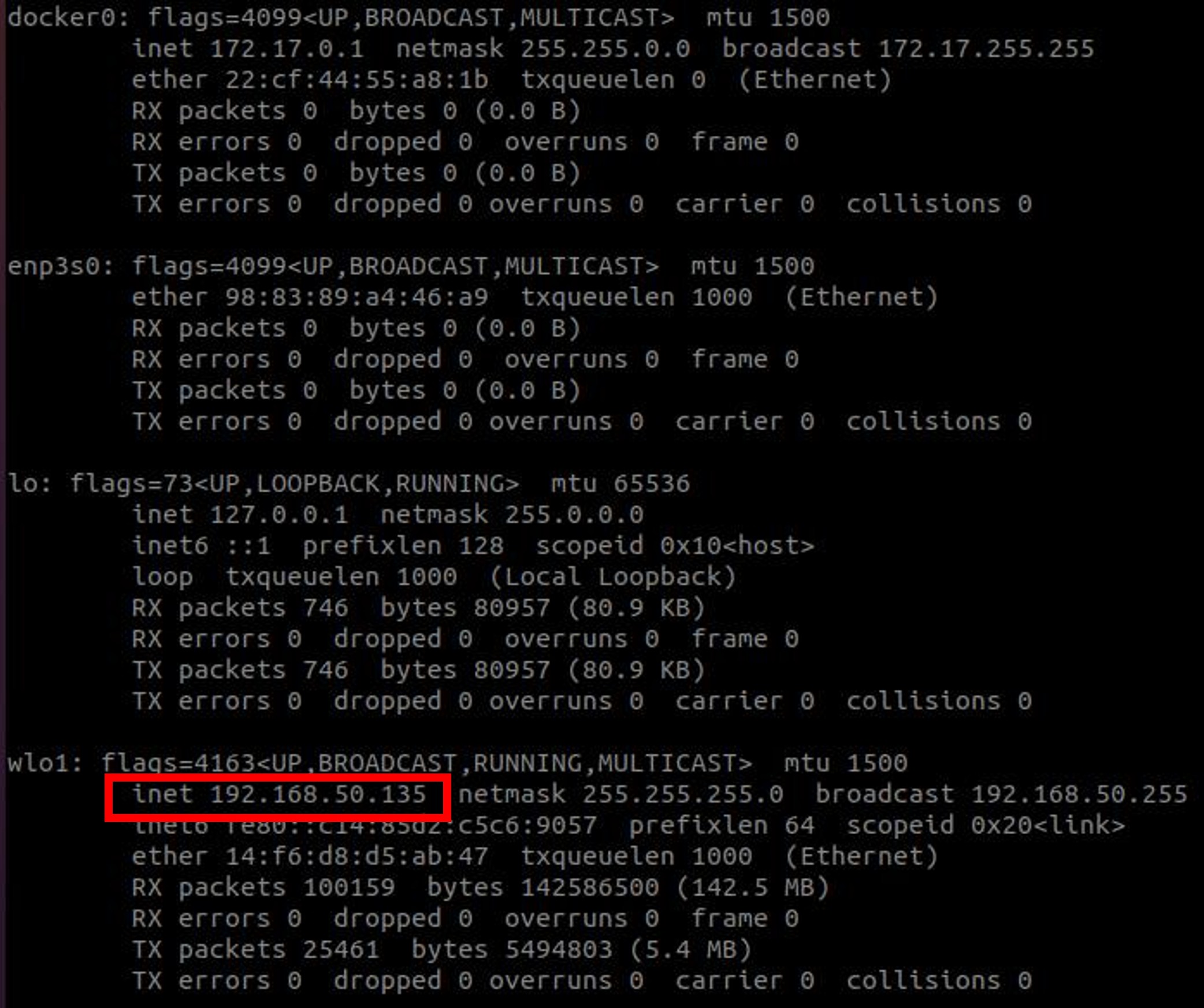
- Use
ifconfigto 확인 your current IP address. - The local PC and the vehicle must be on the same network (Wi‑Fi).
- Use
ping Car_ipto verify connectivity from the local PC to the vehicle. - If there is no response, the Car IP may be wrong, the devices are not on the same network, or the vehicle power is off.
1-2. Set ROS network variables
Based on the IP addresses, update bashrc on the local PC.
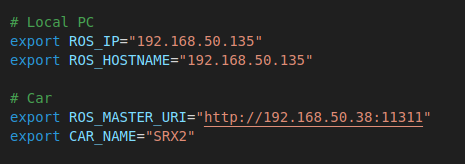
- Local PC
ROS_IP/ROS_HOSTNAME: your local address so other ROS nodes can connect.
1
2
export ROS_IP="Local PC ip"
export ROS_HOSTNAME="Local PC ip"
- Vehicle (Car)
ROS_MASTER_URI: the address where the ROS master is running.
1
export ROS_MASTER_URI="http://Car_ip:11311"
2. Remote access via SSH
Use ssh to access the vehicle remotely.
1
ssh username@Car_ip
Useful options:
-t: force a TTY for interactive commands (docker, roslaunch, etc.)-X: forward GUI to the local PC (rviz, rqt, etc.)-C: compress SSH traffic
Automate password input (sshpass)
1
sshpass -p 'password' ssh username@Car_ip
You can register an alias in bashrc for convenience.
1
alias your_command="sshpass -p 'password' ssh -t -X -C username@Car_ip"
3. Connect to the vehicle Docker container
After logging in via SSH, start and enter the container.
- Start the container
1
docker start docker_name
- Enter the container
1
docker exec -it docker_name bash
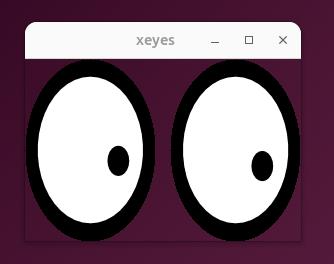
Note: GUI permissions are only available in the terminal you used for the initial SSH connection. Terminals opened later may not have GUI access. Use
xeyesto confirm GUI permissions.
Wrap-up
Remote execution for Racing-Stack is reliable if you follow network setup → SSH access → Docker access. Correct ROS network variables are critical, and GUI use requires the proper SSH options and terminal session.