Reducing WiFi Communication Latency
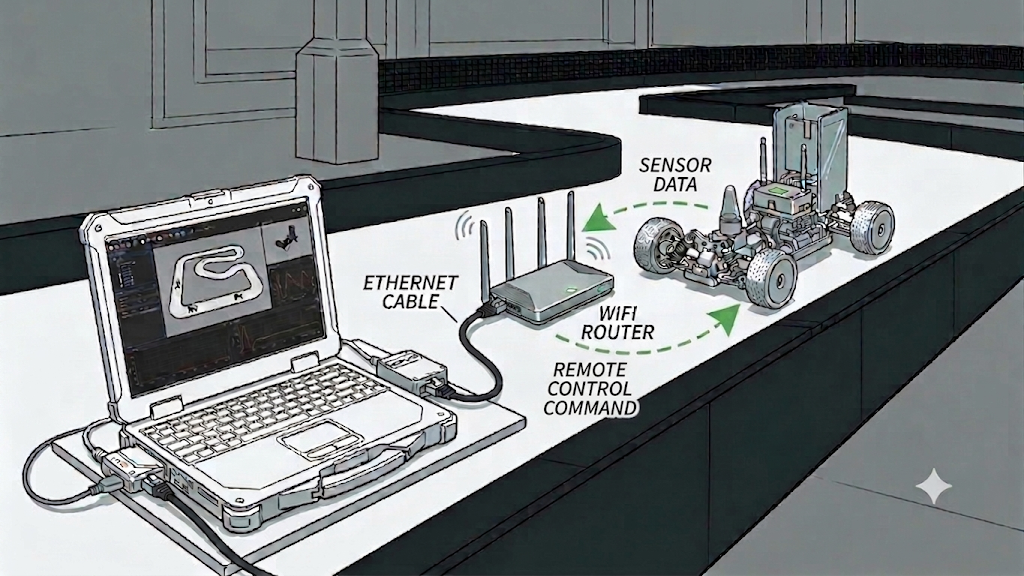
In an environment where real-time remote communication is essential (a ROS2-based autonomous racing stack), the default OS settings alone can produce communication latency and ping spikes. The two settings below improve communication stability.
- Enlarging the memory buffers (kernel socket buffers)
- Setting the network card to Performance mode (disabling WiFi power management)
Applied automatically at workspace build —
unicorn-racing-stack/unicorn.shincludes the buffer-size setting and, of the Performance settings, the protocol-level power-save disable, so running the setup script applies them automatically. The driver-level power-management disable is not included in the script and is applied manually when needed. This post covers why these settings help communication stability, along with how to apply each one individually.
1. Enlarging the Memory Buffers
When using CycloneDDS with ROS2 and exchanging large messages (LiDAR point clouds, images, and so on), the OS socket buffers run short, causing packet drops or delays.
When CycloneDDS creates a socket, it asks the kernel for “this much buffer” — and if the kernel’s ceiling (net.core.rmem_max) is smaller than the request, the allocation is clipped to that ceiling.
- Ubuntu default
rmem_max≈ 208 KB → the CycloneDDS request (~1 MB) gets clipped → warnings / drops - With
rmem_maxopened wide enough (2 GB) → CycloneDDS takes as much as it needs (the headroom is not actually occupied)
In other words, as long as the kernel ceiling is open wide enough, nothing needs changing on the CycloneDDS side (xml) — and it does not actually occupy the full 2 GB; it is closer to raising the “ceiling” to the maximum.
This setting is already included in
unicorn.shand applied automatically when the script runs; below is what the script does, along with the manual procedure.
Checking the Current Values
1
sysctl net.core.rmem_max net.core.wmem_max
Applying Permanently
1
2
3
4
5
6
sudo tee /etc/sysctl.d/60-cyclonedds.conf << 'EOF'
net.core.rmem_max=2147483647
net.core.wmem_max=2147483647
EOF

sudo sysctl --system
2147483647 (2³¹ − 1 ≈ 2 GB) is the maximum value recommended by the official CycloneDDS documentation.
Verifying
1
2
sysctl net.core.rmem_max
# net.core.rmem_max = 2147483647 means it worked
If the socket-buffer warnings disappear when CycloneDDS runs and there are no drops, the setting is in effect. Apply it on both Host and Client.
2. Setting the Network Card to Performance Mode (Turning Off WiFi Power Management)
On a fresh Ubuntu install, NetworkManager puts WiFi in Powersave mode by default. This throttles network output and can become a major source of delay in a remote-communication environment where real-time traffic is essential.
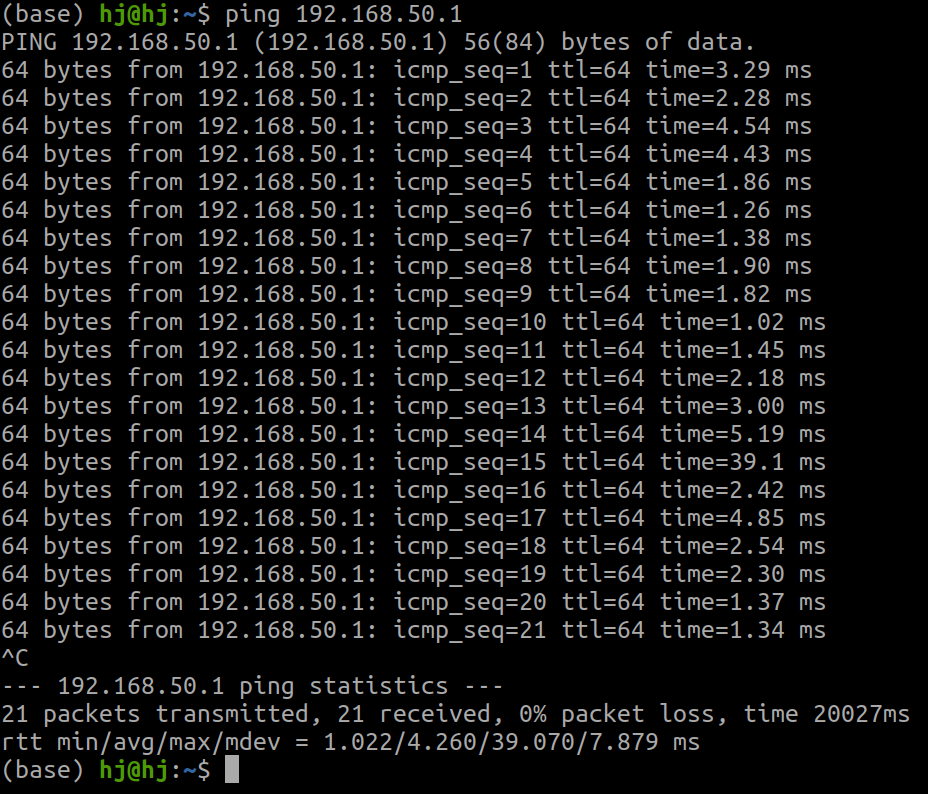 Ubuntu default settings + driver defaults (ping intermittently spikes 10×+, max = 39 ms)
Power management happens at two levels, each with a different scope.
| Level | Target | Scope |
|---|---|---|
| Protocol / NetworkManager | iw, NetworkManager | almost all chipsets |
Driver (iwlwifi) | Intel WiFi chipsets | Intel only |
Of the Performance settings, the protocol level (section 2-2) is included in
unicorn.shand applied automatically when the script runs. The driver level (section 2-3) is not in the script — apply it manually with the steps below when needed.
Apply on both Host and Client.
2-1. Checking the WiFi Interface Name
First check your machine’s wireless interface name. Replace the interface name in every command that follows with the value found here.
1
2
3
ifconfig
# or
ip link
It varies by machine: wlp2s0, wlan0, wlo1, and so on.
Do not use the literal INTERFACE in the examples below — replace it with the actual name you found (e.g. wlp2s0).
2-2. Disabling Protocol-Level Power Save (All Chipsets)
This step is included in unicorn.sh and applied automatically when the script runs. Below is the manual procedure.
Immediate (resets on reboot):
1
sudo iw dev INTERFACE set power_save off
Permanent:
1
2
3
4
5
6
sudo tee /etc/NetworkManager/conf.d/wifi-powersave-off.conf << 'EOF'
[connection]
wifi.powersave = 2
EOF

sudo systemctl restart NetworkManager
For wifi.powersave, 2 means disabled (always on) and 3 means power save enabled.
Verify:
1
2
iw dev INTERFACE get power_save
# 'power save: off' means it worked
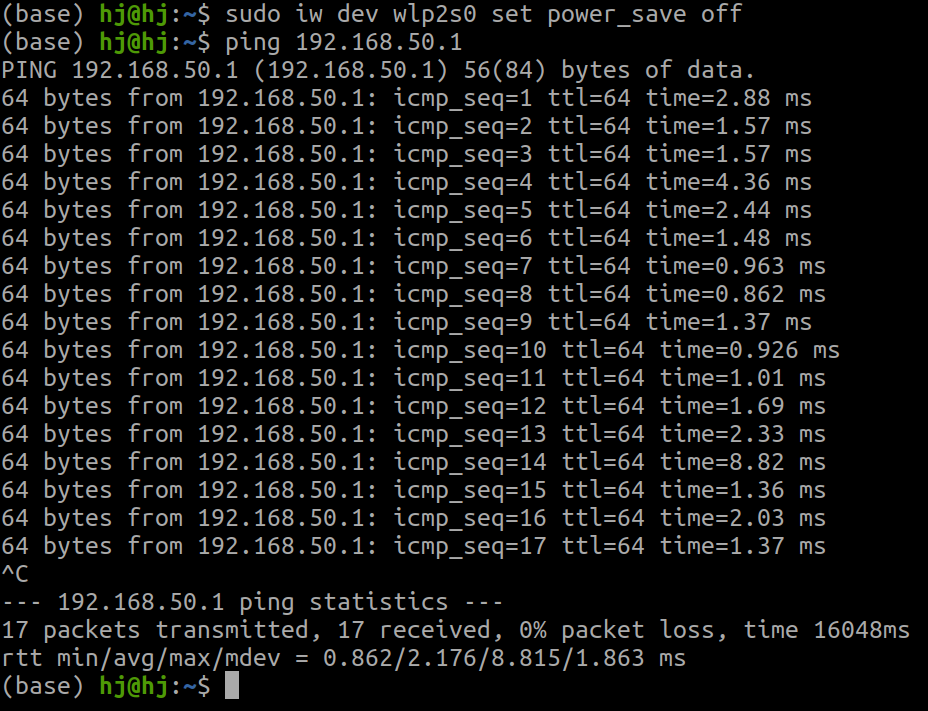 WiFi power save off + driver defaults (ping still spikes occasionally but with smaller swings, max = 8.8 ms)
2-3. Disabling Driver-Level Power Management (Intel Chipsets Only)
This section applies to Intel WiFi chipsets.
iwlwifiis an Intel-only driver — it does not apply to Realtek / MediaTek / Qualcomm and other chipsets. If yours is not Intel, applying up to section 2-2 is enough, and that alone brings substantial improvement. Check your chipset first below before proceeding.
This step is not included in unicorn.sh, so apply it manually.
Of all the settings tried, this driver-level power-management setting made the most decisive difference.
The Cause
Linux’s iwlwifi driver performs its own power management at the driver level, independent of NetworkManager’s WiFi Power Management. At the default power_scheme=2 (balanced mode), the chip drops into a low-power state when there is no traffic, and waking back up incurs tens to hundreds of milliseconds of delay — the direct cause of the ping spikes.
In other words, iw ... set power_save off (protocol level) alone is not enough; the driver-level power management must be disabled as well.
Checking the WiFi Chipset
1
lspci | grep -i net
1
02:00.0 Network controller: Intel Corporation Device 2725 (rev 1a)
If you see Intel Corporation, it is an Intel chipset (the example above is AX211, Device 2725) using iwlwifi. If not Intel, skip this section and apply only up to 2-2.
Checking the Kernel Version and Driver Module
The loaded module differs by kernel version, and with it the parameter path to configure.
1
2
3
4
5
# kernel version
uname -r

# loaded modules
lsmod | grep iwl
| Kernel version | Module |
|---|---|
| Kernel 5.x | iwlmvm |
| Kernel 6.17+ | iwlmld |
Follow the side matching your kernel version.
Kernel 5.x (iwlmvm)
Check the current power settings:
1
2
cat /sys/module/iwlwifi/parameters/power_save
cat /sys/module/iwlmvm/parameters/power_scheme
Apply:
1
echo -e "\noptions iwlwifi power_save=0\noptions iwlmvm power_scheme=1" | sudo tee -a /etc/modprobe.d/iwlwifi.conf
Reload the modules (applies without reboot; WiFi disconnects briefly):
1
2
3
sudo rmmod iwlmvm
sudo rmmod iwlwifi
sudo modprobe iwlwifi
Verify:
1
2
cat /sys/module/iwlwifi/parameters/power_save
cat /sys/module/iwlmvm/parameters/power_scheme
Kernel 6.17+ (iwlmld)
Check the current power settings:
1
2
cat /sys/module/iwlwifi/parameters/power_save
cat /sys/module/iwlmld/parameters/power_scheme
Apply:
1
echo -e "\noptions iwlwifi power_save=0\noptions iwlmld power_scheme=1" | sudo tee -a /etc/modprobe.d/iwlwifi.conf
Reload the modules (applies without reboot; WiFi disconnects briefly):
1
2
3
sudo rmmod iwlmld
sudo rmmod iwlwifi
sudo modprobe iwlwifi
Verify:
1
2
cat /sys/module/iwlwifi/parameters/power_save
cat /sys/module/iwlmld/parameters/power_scheme
Verifying
If the output shows power_save: N and power_scheme: 1, it is applied. power_scheme=1 is the maximum-performance mode, disabling the chip’s low-power transitions. Since it was written under /etc/modprobe.d/, it persists across reboots.
The Effect
With driver-level power management also disabled, there are no delays from low-power transitions, so the intermittent ping spikes decrease. If both Host and Client use Intel WiFi chipsets, apply it on both.
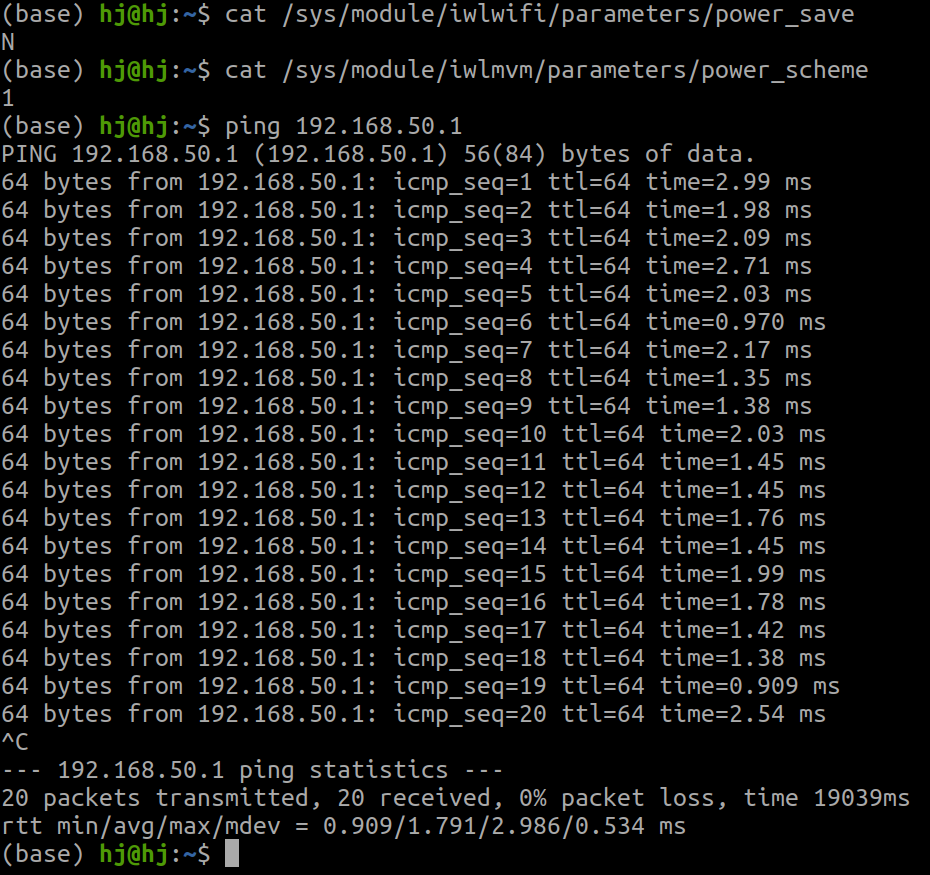 WiFi power save off + driver performance settings (ping steady and low, max = 3 ms)
Summary
| Setting | Target | How applied |
|---|---|---|
Kernel buffers (rmem_max / wmem_max = 2 GB) | all machines | included in unicorn.sh |
Protocol power-save off (iw ... power_save off, wifi.powersave=2) | all chipsets | included in unicorn.sh |
Driver power-save off (iwlwifi power_save=0, power_scheme=1) | Intel chipsets | manual |
Apply the buffer and power-save settings on both Host and Client.
Wrap-up
This post covered two settings that reduce latency and ping spikes in a ROS2 remote-communication environment — enlarging the kernel socket buffers and disabling WiFi power management (protocol and driver level). Compared to the defaults, the maximum ping dropped from 39 ms to 3 ms. Most of it is applied automatically by running unicorn.sh; on Intel chipsets we recommend applying the driver-level disable manually as well. For fixed IPs, see Fixing Device IPs by MAC Address on the Router.