Hokuyo LiDAR Setup: Static IP Configuration and Sensor Data Check
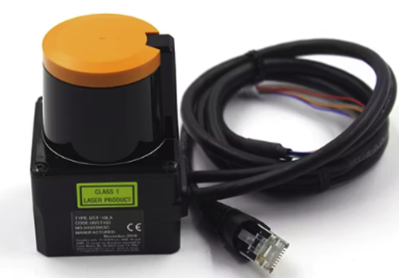
This guide walks through connecting a Hokuyo LiDAR to the vehicle, from configuring a static IP to checking the scan data in ROS 2.
If you don’t know the LiDAR’s IP address, first see How to Find LiDAR Sensor IP Address Using Wireshark.
1. Static IP Configuration
The Ethernet interface of the board connected to the LiDAR must be set to a static IP. The following assumes the LiDAR’s IP is 192.168.0.10.
1.1 IPv4 Settings
Go to Settings → Network → Wired settings button → IPv4.
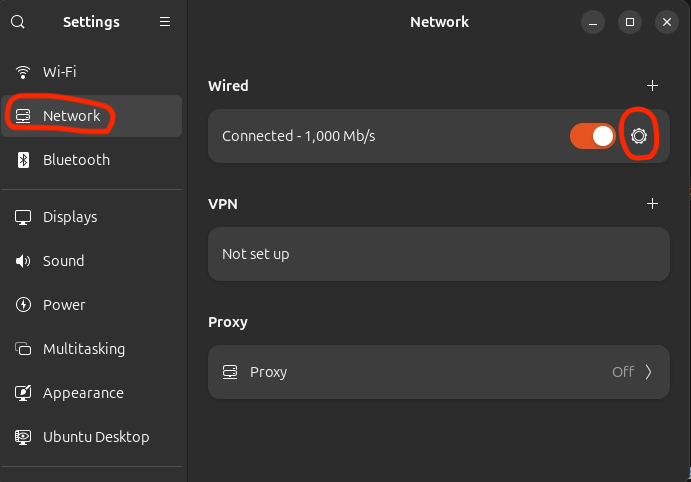
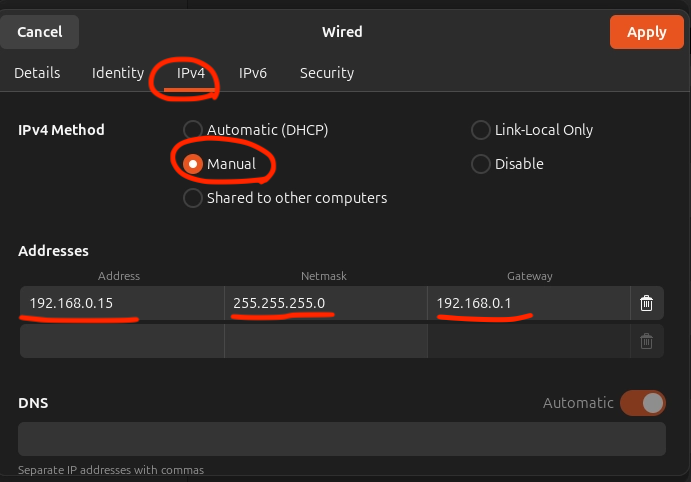
- Address: Keep the first three octets identical to the LiDAR IP and change only the last number. (e.g.
192.168.0.20) - Netmask:
255.255.255.0 - Gateway: Keep the first three octets identical and append
1at the end. (e.g.192.168.0.1)
1.2 Apply
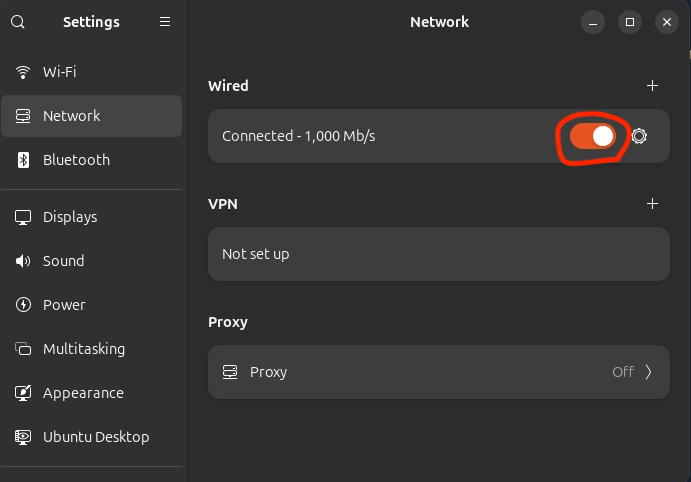
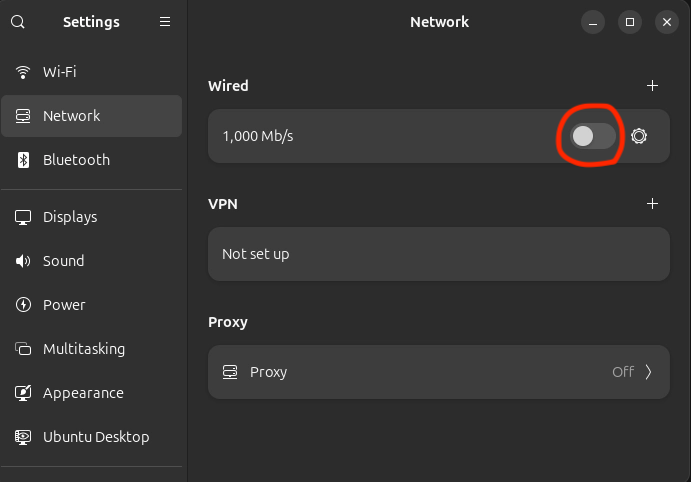
To apply the settings, turn the wired connection off and back on.
2. Sensor Data Check
If you have not built the UNICORN Racing Stack on the car yet, please complete Building the UNICORN Racing Stack on the RaceCar first.
2-1. Verify the LiDAR IP
Check that the LiDAR IP is set correctly in ~/unicorn_ws/src/unicorn-racing-stack/stack_master/config/CAR/vehicle_config.yaml.
1
2
3
4
5
urg_node:
  ros__parameters:
    angle_max: 3.14
    angle_min: -3.14
    ip_address: "192.168.0.10"
2-2. Launch Low Level (LiDAR, VESC, mux, …)
1
ros2 launch stack_master low_level.launch.xml
You should see output similar to the following.

2-3. Check Data in the Terminal
1
2
3
4
5
ros2 topic echo /scan
# or
ros2 topic echo /scan --field header
ros2 topic echo /scan --field ranges
ros2 topic hz /scan
2-4. Visualize Scan Data in Rviz2
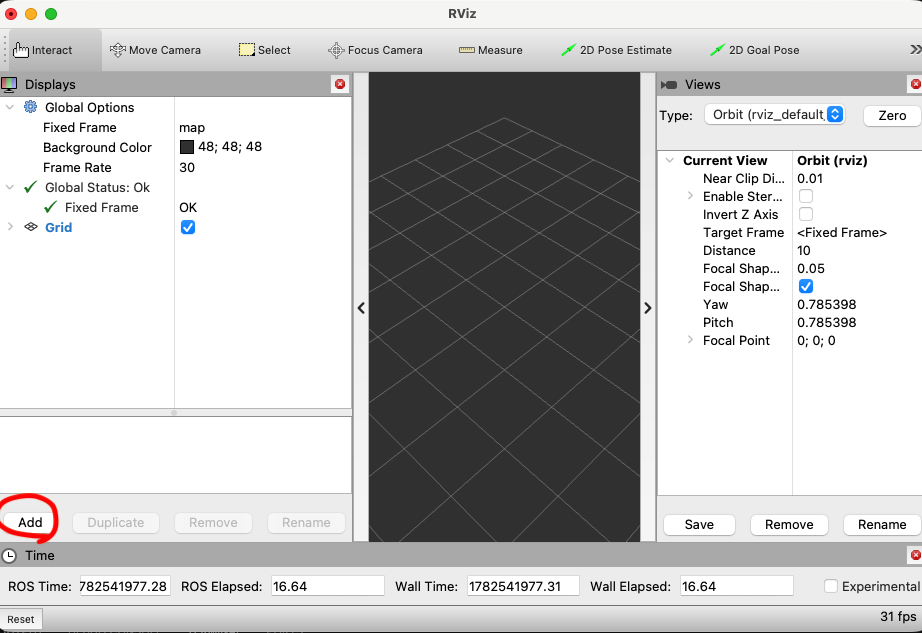
Run Rviz2.
1
rviz2
Add the scan topic.
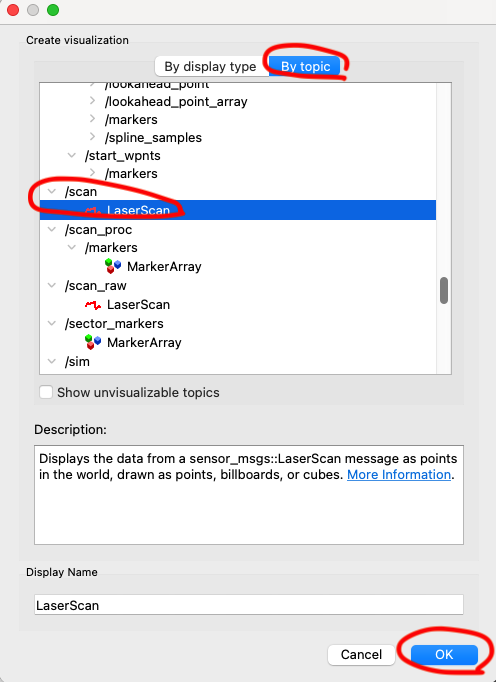
Set the Fixed Frame and the topic QoS.
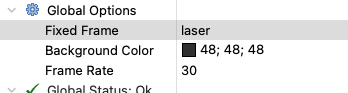
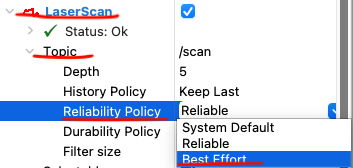
If the LiDAR scan does not show up, make sure the scan topic’s Reliability Policy is set to Best Effort. Sensor data is usually published as Best Effort.
Conclusion
In this post, we covered the static IP configuration required to use a Hokuyo LiDAR, and how to verify the scan data in ROS 2.
- Set the board’s Ethernet to a static IP in the same subnet as the LiDAR.
- Match the
ip_addressinvehicle_config.yamlto the LiDAR IP. - After running
low_level.launch.xml, check the data via the/scantopic and Rviz2.
If you don’t know the LiDAR’s IP, see How to Find LiDAR Sensor IP Address Using Wireshark.